

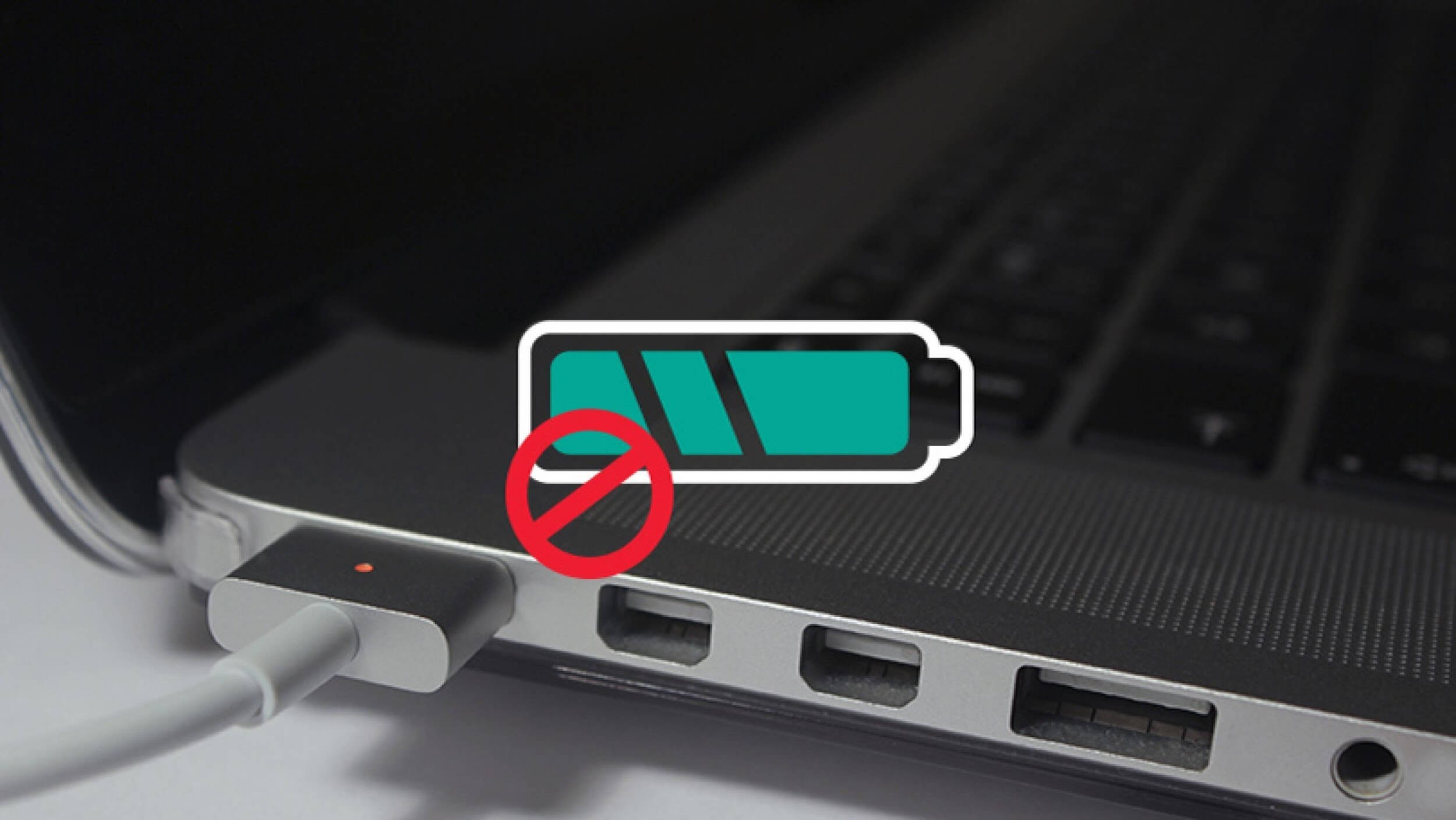
A laptop that says it is plugged in but is not charging does not always have a failed battery. The cause can be a charger or cable that cannot supply enough power, a charge-limit feature, a damaged port, battery degradation, a software or firmware issue, or a hardware fault. Start with the safest checks and work from the power source toward the battery and laptop hardware.
First, identify what “not charging” means
Check the exact battery message before changing anything. A laptop may be connected to power but intentionally hold the battery below 100% because of a smart-charging or charge-limit feature. It may also say charging slowly, plugged in, not charging, or discharging while plugged in. These messages point to different troubleshooting paths.
1. Check the wall outlet and power connection
Connect the charger directly to a known-working wall outlet. If you normally use a power strip, dock, monitor, or extension lead, temporarily remove it from the charging path. Confirm that the charger is firmly connected at both ends.
If another compatible outlet works, the problem may be with the original outlet or power accessory rather than the laptop.
2. Check the charger and cable
Inspect the adapter, cable, and connector for cuts, exposed wires, bent pins, loose connections, unusual heat, or intermittent power. Do not use visibly damaged charging equipment.
For USB-C charging, physical compatibility is not enough. The charger and cable must provide the power level required by the laptop. A phone charger or lower-wattage USB-C adapter may power the laptop while still being unable to charge the battery during normal use. Microsoft notes that an underpowered or incompatible charger can cause a Windows PC to charge slowly or discharge while plugged in.
Use the manufacturer-recommended charger and cable where possible. Check the laptop manufacturer’s specifications for required wattage rather than choosing a charger based only on the connector shape.
3. Restart the laptop
A normal restart can clear a temporary operating-system or power-management problem. Save your work, disconnect unnecessary peripherals, restart the laptop, and reconnect the charger after the system loads.
4. Check smart charging and charge limits
Before assuming the battery is faulty, check the battery settings supplied by your operating system or laptop manufacturer.
Windows devices may use Smart charging, which can intentionally stop charging below 100% while the laptop remains plugged in. This is designed to reduce battery wear. Some manufacturers also provide their own battery-health or charge-limit controls.
On supported Mac laptops, Optimized Battery Charging and Charge Limit can also delay or limit charging. A Mac may therefore show that charging is on hold or that it has reached a selected charge limit even though the power adapter is connected.
If the battery remains at a stable level and the laptop works normally on AC power, an intentional charge limit is more likely than a charging failure.
5. Check whether the laptop is using more power than the charger supplies
High CPU or GPU workloads can sometimes make a laptop charge slowly or even lose battery percentage while plugged in, particularly when the power adapter is below the system’s recommended wattage. Gaming, video rendering, virtual machines, and other sustained workloads can increase power demand.
Close demanding applications and observe whether the battery begins charging. If it does, check the charger wattage and the laptop manufacturer’s power requirements before replacing the battery.
6. Inspect the charging port
Look inside the charging port for visible debris, damage, or a loose connection. Do not insert metal objects or force the connector into the port.
If charging works only when the connector is held at a particular angle, disconnect the charger and arrange a professional inspection. Repeatedly bending or forcing the connector can make physical damage worse.
7. Install appropriate operating-system and firmware updates
Install pending operating-system updates and manufacturer-provided firmware or power-management updates when they are appropriate for your model. Use Windows Update, macOS Software Update, or the laptop manufacturer’s official support site rather than downloading drivers from unknown sources.
Do not install random battery or driver utilities simply because they claim to fix charging problems. They can add unnecessary software without addressing the underlying hardware issue.
8. Check battery health
Lithium-ion batteries naturally lose capacity with age and use. If the laptop is several years old, battery degradation becomes a more plausible explanation, especially if battery runtime has fallen significantly, the battery percentage behaves erratically, or the system reports a service warning.
Use the diagnostic or battery-health information provided by the laptop manufacturer or operating system. A battery-health reading is more useful than judging battery condition from age alone.
9. Test with the laptop powered off
If the laptop charges when it is asleep or powered off but not while you are actively using it, investigate power demand, charger wattage, and charging settings before assuming the battery has failed.
If it still does not charge while powered off with a known-compatible charger, the likelihood of a charger, port, battery, or internal charging-circuit problem increases.
When the battery or hardware may need service
Professional service is appropriate when the charging port is damaged, the laptop repeatedly loses power despite a compatible charger, diagnostics report a battery fault, or the system shows a service warning.
Stop using the laptop and disconnect it from power if the battery is swollen, leaking, smoking, producing an unusual smell, or becoming dangerously hot. Do not puncture, crush, open, or attempt to repair a damaged lithium-ion battery yourself.
Quick troubleshooting checklist
- Test a known-working wall outlet.
- Connect the charger directly instead of through a dock or power strip.
- Check the charger and cable for damage.
- Confirm the charger provides the laptop’s required wattage.
- Restart the laptop.
- Check Smart charging, Optimized Battery Charging, or a manufacturer charge limit.
- Close high-power applications and see whether charging resumes.
- Inspect the charging port without inserting objects into it.
- Install appropriate operating-system and manufacturer updates.
- Run the manufacturer’s battery diagnostics.
- Seek qualified service for physical damage or a failed battery or charging circuit.
Common mistakes to avoid
- Buying a replacement battery before checking the charger and charge-limit settings.
- Assuming every USB-C charger can deliver enough power for every laptop.
- Continuing to use a visibly damaged cable or swollen battery.
- Forcing a loose charging connector or cleaning a port with metal objects.
- Installing untrusted driver or battery-management software.
- Assuming that stopping below 100% automatically means the battery is defective.
Bottom line
A laptop that is plugged in but not charging should be diagnosed in stages. Start with the outlet, charger, cable, charging message, and power requirements. Then check charge-limit settings, workload, software, battery health, and the physical charging port. If the device shows signs of battery damage or still fails with the correct power equipment, stop troubleshooting and use qualified repair service.
